Hide and lock text files in Windows
Need to password-protect or lock important or confidential files on your computer? I normally tend to save my passwords, account numbers, and user names in a text file on my computer, but it’s horribly prone to hackers. If you’re using Notepad like me to store all this highly sensitive information, you’re taking a big risk.
I’ve previously written about other methods to protect the data on your computer, mostly focused on creating a secure or protected Windows folder:
Protecting a directory might be useful in many circumstances, but it’s also useful sometimes to just encrypt or lock a single file. In this case, the above methods are simply too much extra work and not needed.That’s where you can use a nifty little program called LockNote to replace Notepad when you want to create secure and locked text files. Using LockNote, you can protect your files with double security: AES 265-bit encryption and password protection.
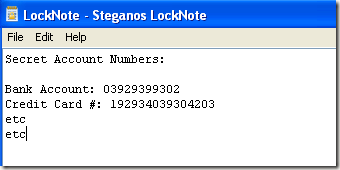
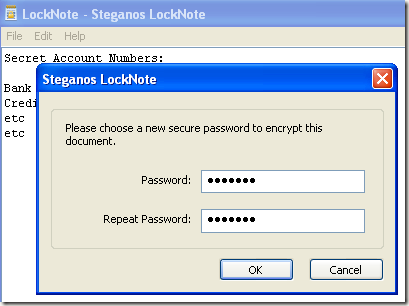
Once installed, type in whatever you want into the text area and then go to File and choose Save As. Pick a location and click Save and then type in a password to protect your file.
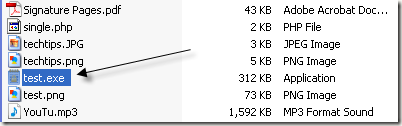
You’ll notice that the file that is saved ends with an .EXE extension, which is for an application. The file is encrypted so even if someone gets a hold of the file, they will not be able to view the contents unless they know the password.
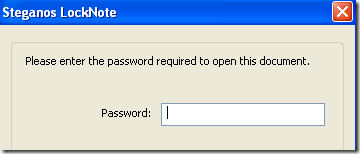
When you double-click on the file, you’ll be prompted for the password:
The other cool feature of LockNote is that you can convert any of your current text files create from Notepad or wherever into a secure LockNote file by simply dragging and dropping the file onto the main interface. That means if you already have a few important files, there is no need to copy and paste it into LockNote, just drag the file into the text area.
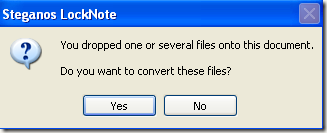
You’ll get a message asking you if you want to convert the file into a secure file, so click Yes. Then type in a password for the file to protect it. Make sure that your passwords are long and secure so that they cannot be hacked.
Finally, the program is a stand-along executable, meaning there is no installation required. You can copy the EXE file onto your USB stick and carry it around with you anywhere. Enjoy!


No comments:
Post a Comment